Compiling the code
Model runs using RPM-CRN are handled by driver files that initiate objects and run the simulations. These driver files are C++ scripts that are compiled to form an executable program. The default driver generates a standalone model that ingests a parameter file that controls the software by setting values for the various control parameters in the model.
To compile the model on your local machine, use the make command and point it to the makefile in the repository:
Rocky-Profile-Model$ make -f RPM_CRN.make
This will result in an executable called RPM_CRN.out.
Running the code
The program can then be launched at the command line, requiring two input arguments. * The path of the folder where the model will be run * The name of the input parameter file (which must be in the folder where the model will be run)
The following command will launch the executable in its current directory with the default parameter values:
Rocky-Profile-Model$ RPM_CRN.out ./ example_parameter_file.txt
Alternatively you could move the parameter file to a directory for your project and customise it:
Rocky-Profile-Model$ RPM_CRN.out /home/mhurst/MyFirstRPMCRN/ modified_parameter_file.txt
For a detailed description of the contents of a parameter file, see configuration options.
Plotting the results
The model output will be written to your project directory. There are two output files, one containing the timeseries of topographic evolution of the simulated rock coast, and once containing the corresponding timeseries of CRN concentrations at the surface of the topography.
For more information about the format of the output files, see model output.
Visualisation and further analysis of the model run is conducted in python (though you could write your own functions in a different language such as R or Matlab). A timeseries of the evolution of the model topography and snapshhot of the final CRN concentrations can be generated using /plotting_functions/RPM_CRN_Figure.py.
This python script is currently set up to work with the example simulation detailed above. The last section of the script can be modified to plot results of your custom simulations.
if __name__ == "__main__":

    # set the workspace
    Folder = Path("../")

    # set the project name
    Project = "TestProject"

    # set the location and name of the output figures
    FigureFile = Folder / "Evolution.png"
    FigureFile2 = Folder / "ProfileConcentrations.png"

    # define model output files
    ProfileFile = Folder / (Project+"_ShoreProfile.xz")
    ConcentrationsFile = Folder / (Project+"_Concentrations.xn")

    # create and populate the figures then save
    EvolutionFigure = RPM_CRN_Figure()
    EvolutionFigure.PlotProfileEvolutionFigure(ProfileFile)
    EvolutionFigure.SaveFig(FigureFile)

    MyFigure = RPM_CRN_Figure(FigWidth_Inches=11.)
    MyFigure.PlotProfileAndConcentrationFigure(ProfileFile, ConcentrationsFile, Label="test", Legend=True)
    MyFigure.SaveFig(FigureFile2)
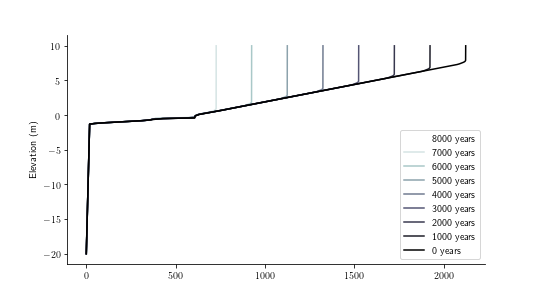
The first figure output shows a timeseries of the shore platform evolution over the duration of the model simulation, with topographic profiles plotted every thousand years of the simulation:
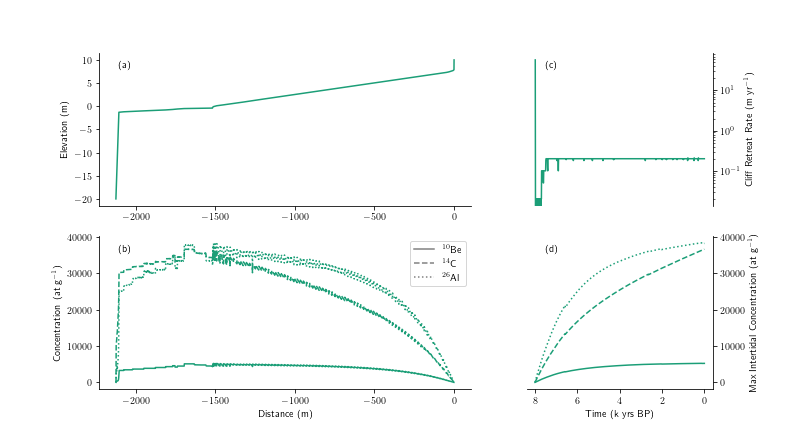
The second figure output shows (a) the final topographic profile; and also shows (b) the concentrations of the chosen CRNs (10Be, 14C or 26Al) distributed across the final model topography, (c) the timeseries of cliff retreat rates, and (d) the timeseries of the maximum CRN concentration for each chosen nuclide: